Customize container images used by the Quay Operator
Override default Quay Operator container images with environment variables and apply overrides to a running Operator.
Customizing Default Operator Images
|
Note
|
Currently, customizing default Operator images is not supported on IBM Power and IBM Z. |
Customizing default Operator images lets you override the default container images used by the Project Quay Operator by setting environment variables in the ClusterServiceVersion object.
|
Important
|
Customizing default Operator images is not supported for production Project Quay environments and is only recommended for development or testing purposes. There is no guarantee your deployment will work correctly when using non-default images with the Project Quay Operator. |
Environment Variables
The Project Quay Operator uses environment variables to override default container images for components such as base, clair, postgres, and redis. You can set these variables in the ClusterServiceVersion object to customize which images the Operator uses for each component.
Environment Variable |
Component |
|
|
|
|
|
|
|
|
|
Note
|
Overridden images must be referenced by manifest (@sha256:) and not by tag (:latest). |
Applying overrides to a running Operator
To override container images for a running Project Quay Operator, you can modify the ClusterServiceVersion object to add environment variables that point to your custom images. This applies the overrides at the Operator level, so all QuayRegistry instances use the same custom images.
-
The
ClusterServiceVersionobject is Operator Lifecycle Manager’s representation of a running Operator in the cluster. Find the Project Quay Operator’sClusterServiceVersionby using a Kubernetes UI or thekubectl/ocCLI tool. For example:$ oc get clusterserviceversions -n <namespace> -
Using the UI,
oc edit, or another method, modify theClusterServiceVersionobject to include the environment variables outlined above to point to the override images:JSONPath:
spec.install.spec.deployments[0].spec.template.spec.containers[0].env- name: RELATED_IMAGE_COMPONENT_QUAY value: quay.io/projectquay/quay@sha256:c35f5af964431673f4ff5c9e90bdf45f19e38b8742b5903d41c10cc7f6339a6d - name: RELATED_IMAGE_COMPONENT_CLAIR value: quay.io/projectquay/clair@sha256:70c99feceb4c0973540d22e740659cd8d616775d3ad1c1698ddf71d0221f3ce6 - name: RELATED_IMAGE_COMPONENT_POSTGRES value: centos/postgresql-10-centos7@sha256:de1560cb35e5ec643e7b3a772ebaac8e3a7a2a8e8271d9e91ff023539b4dfb33 - name: RELATED_IMAGE_COMPONENT_REDIS value: centos/redis-32-centos7@sha256:06dbb609484330ec6be6090109f1fa16e936afcf975d1cbc5fff3e6c7cae7542
Surface image vulnerabilities in the OpenShift cluster console
Install the Container Security Operator on OpenShift to view image vulnerabilities in the console and CLI.
Container Security Operator
The Container Security Operator (CSO) scans images for active pods and reports vulnerabilities through the Kubernetes API. You can use CSO with Project Quay and Clair to monitor security issues in running workloads.
|
Important
|
The Container Security Operator has been deprecated and planned for removal in a future release of Project Quay and OpenShift Container Platform. The official replacement product of the Container Security Operator is Red Hat Advanced Cluster Security for Kubernetes. |
|
Note
|
The CSO does not work without Project Quay and Clair. |
The Container Security Operator (CSO) includes the following features:
-
Watches containers associated with pods on either specified or all namespaces.
-
Queries the container registry where the containers came from for vulnerability information, provided that an image’s registry supports image scanning, such as a Project Quay registry with Clair scanning.
-
Exposes vulnerabilities through the
ImageManifestVulnobject in the Kubernetes API.
|
Note
|
To see instructions on installing the CSO on Kubernetes, select the Install button on the Container Security Operator OperatorHub page. |
Downloading and running the Container Security Operator in OpenShift Container Platform
To scan container images for vulnerabilities in your OpenShift Container Platform cluster, you can install the Container Security Operator from the OpenShift Container Platform OperatorHub and view vulnerability information in the dashboard.
The following procedure sets up the Container Security Operator to monitor pods and expose vulnerability data through the Kubernetes API.
|
Note
|
In the following procedure, the Container Security Operator is installed in the |
After completing this procedure, you are made aware of what images are vulnerable, what you must do to fix those vulnerabilities, and every namespace that the image was run in. Knowing this, you can perform the following actions:
-
Alert users who are running the image that they need to correct the vulnerability.
-
Stop the images from running by deleting the deployment or the object that started the pod that the image is in.
-
On the OpenShift Container Platform console page, select Operators → OperatorHub and search for Container Security Operator.
-
Select the Container Security Operator, then select Install to go to the Create Operator Subscription page.
-
Check the settings (all namespaces and automatic approval strategy, by default), and select Subscribe. The Container Security appears after a few moments on the Installed Operators screen.
-
Optional: you can add custom certificates to the CSO. In this example, create a certificate named
quay.crtin the current directory. Then, run the following command to add the certificate to the CSO:$ oc create secret generic container-security-operator-extra-certs --from-file=quay.crt -n openshift-operatorsNoteYou must restart the Operator pod for the new certificates to take effect.
-
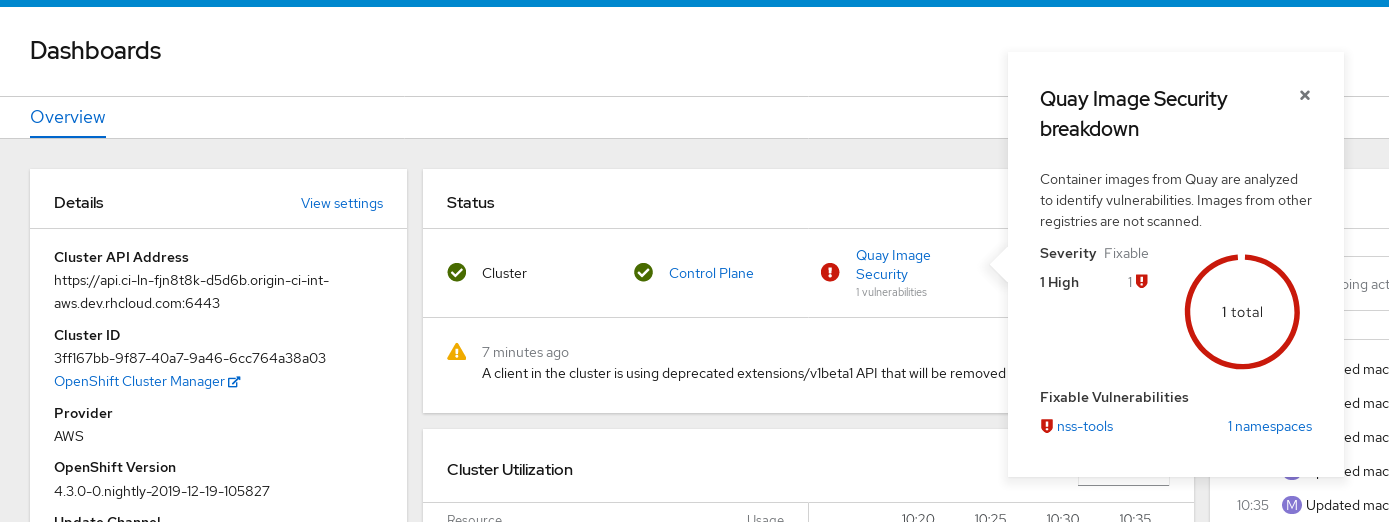
Navigate to Home → Overview. A link to Image Vulnerabilities appears under the status section, with a listing of the number of vulnerabilities found so far. Select the link to see a security breakdown, as shown in the following image:
 Important
The Container Security Operator currently provides broken links for Red Hat Security advisories. For example, the following link might be provided:
https://access.redhat.com/errata/RHSA-2023:1842%20https://access.redhat.com/security/cve/CVE-2023-23916. The%20in the URL represents a space character, however it currently results in the combination of the two URLs into one incomplete URL, for example,https://access.redhat.com/errata/RHSA-2023:1842andhttps://access.redhat.com/security/cve/CVE-2023-23916. As a temporary workaround, you can copy each URL into your browser to navigate to the proper page. This is a known issue and will be fixed in a future version of Project Quay. -
You can do one of two things at this point to follow up on any detected vulnerabilities:
-
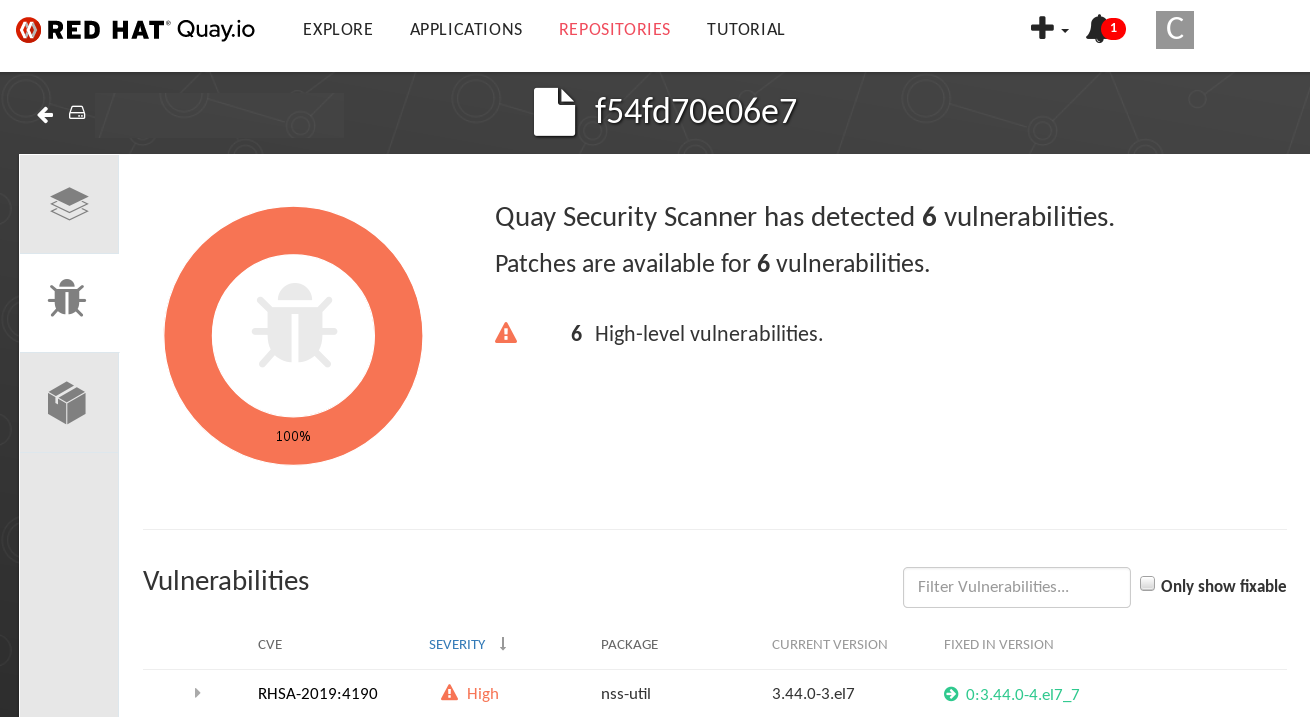
Select the link to the vulnerability. You are taken to the container registry, Project Quay or other registry where the container came from, where you can see information about the vulnerability. The following figure shows an example of detected vulnerabilities from a Quay.io registry:
-
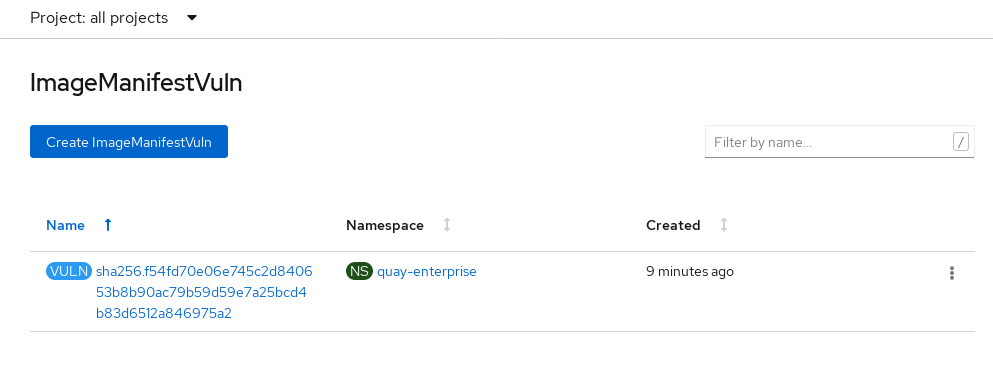
Select the namespaces link to go to the Image Manifest Vulnerabilities page, where you can see the name of the selected image and all namespaces where that image is running. The following figure indicates that a particular vulnerable image is running in two namespaces:
-
Querying image vulnerabilities from the CLI
To check for security vulnerabilities in your Project Quay container images, you can query vulnerability information from the command line using the oc get vuln command. You can also view detailed information about specific vulnerabilities by using the oc describe vuln command.
-
Enter the following command to query for detected vulnerabilities:
$ oc get vuln --all-namespacesExample outputNAMESPACE NAME AGE default sha256.ca90... 6m56s skynet sha256.ca90... 9m37s -
Optional. To display details for a particular vulnerability, identify a specific vulnerability and its namespace, and use the
oc describecommand. The following example shows an active container whose image includes an RPM package with a vulnerability:$ oc describe vuln --namespace <namespace> sha256.ac50e3752...
Name:         sha256.ac50e3752...
Namespace:    quay-enterprise
...
Spec:
  Features:
    Name:            nss-util
    Namespace Name:  centos:7
    Version:         3.44.0-3.el7
    Versionformat:   rpm
    Vulnerabilities:
      Description: Network Security Services (NSS) is a set of libraries...
Uninstalling the Container Security Operator
To uninstall the Container Security Operator from your OpenShift Container Platform deployment, you must uninstall the Operator and delete the imagemanifestvulns.secscan.quay.redhat.com custom resource definition (CRD).
Without removing the CRD, image vulnerabilities are still reported on the OpenShift Container Platform Overview page.
-
On the OpenShift Container Platform web console, click Operators → Installed Operators.
-
Click the menu kebab of the Container Security Operator.
-
Click Uninstall Operator. Confirm your decision by clicking Uninstall in the popup window.
-
Remove the
imagemanifestvulns.secscan.quay.redhat.comcustom resource definition by entering the following command:$ oc delete customresourcedefinition imagemanifestvulns.secscan.quay.redhat.comExample outputcustomresourcedefinition.apiextensions.k8s.io "imagemanifestvulns.secscan.quay.redhat.com" deleted